If you're interested in using SketchUp renders as under-painting and then painting on top of them this great series of tutorials on Digital Painting was on the Life Hacker Night School last week. I'm currently working through the included exercises myself but I am learning a lot. Maybe they'll be useful for you to:

Showing posts with label Tutorials. Show all posts
Showing posts with label Tutorials. Show all posts


File Organization & Version Control Revisited: DropBox
A year and a half ago I wrote a 5 part series here on File Organization and Version Control for SketchUp. Two things spring to mind:
 Remember thumb-drives? They were what we used to use before DropBox. What's DropBox? If you're geeky enough to be reading this blog I assume you already know but if you've being living under a rock for the last year and a half, think of DropBox as a virtual memory stick with benefits. DropBox uses the cloud to store your files and folders. The amazing part is that when you install in on your PC or Mac it full integrates in with your Documents folder. What does that mean? It means it just looks like part of your native file system and you don't have to go through a browser to retrieve and use your files; you just open My Documents, or the Mac equivalent, and your files are right there. Behind the scenes, every time your machine connects to the net it checks to see if there are files to sync and it changes your local cache accordingly. So, if you've been taking measurements out in the field and entering them into a model on your laptop, as long as the laptop connects to the web at some point before you start working in your office, you can take that model created in the field and start using it straight away back on your desktop. And you don't have to do are start anything to initiate this magic - all you need is access to the cloud and enough space on DropBox.
But wait, there's more. You can also choose to share files or folders with others. If you get stuck in your model and you need to share it with your mentor so that they can help you out, via the DropBox web interface you can give them access to your model so that they can try to fix it. If you like what they've done you can just keep on working on the model but if they alter it in a way you don't appreciate DropBox has built in versioning so you can get back to any prior version of the model that you saved to DropBox.
If you work in teams on large modeling projects there still is no substitute for an industrial strength Source Control system setup on your server. If, however, you're a freelancer or enthusiast I highly recommend DropBox as the location where you store, and work on your SketchUp models. DropBox and the cloud has many advantages:
- What kind of nerd writes about source control for fun?
- How fast things change
I still believe in the importance of being able to access your SketchUp work from any machine and being able to get to prior versions of your models when you screw something up but my workflow used to be to transport the master archive around on a thumb-drive.
 |
| DropBox is even useful on your phone |
If you work in teams on large modeling projects there still is no substitute for an industrial strength Source Control system setup on your server. If, however, you're a freelancer or enthusiast I highly recommend DropBox as the location where you store, and work on your SketchUp models. DropBox and the cloud has many advantages:
- If your hard drive fails your work is safe
- If you work in SketchUp on more than one machine you can be confident that you're working on the most current version on the model
- You can easily share a model with a collaborator
- You can easily locate previous versions of your model
- Unlike a thumbdrive, you can't loose your data because you forgot to take it out of your jeans before doing laundry, or it got lost down the back of the couch.
- It's cheap or even free
- It works on your PC, Mac, iPhone or Android
- You don't have to set anything up or change your workflow
If you don't have 100% faith in the cloud or you don't have persistent access to the web DropBox can still work for you. While you're unconnected you will be working on a local cache on your PC and it will sync up in the background the next time you're connected to the web. If you're already backing up your documents (you are reckless if you're not) you're DropBox folder will be included in this backup without you having to make any changes.
Disadvantages/Gotchas:
- if you move a folder you loose the history of the files it contains so, if the file history is important to you do not reorganize your folders.
- trusting your data to the cloud feels strange if you haven't done it before
- space is limited unless you pay or work to get some free upgrades. Luckily SketchUp models are pretty efficient and compact.
- I've experienced occasional quirkiness when SketchUp auto-saves large models to a DropBox folder if your connection is slow or flaky
- be careful sharing folders containing large files - if you have a free account DropBox takes the shared file size from both your quotas - no a biggy but something to bear in mind.
I can't believe how easy DropBox has made my geeky life. If you haven't given it a go I highly recommend that you do. If you do have an account you might consider adopting my working practice and making it your primary SketchUp working directory.
 |
| Context sensitive menu showing how to access previous versions of a file |
Elsewhere:
File Organization & Version Control [part 5]: Daily Use
[previously - part 4, part 3, part 2, part 1]
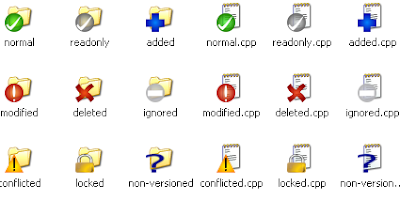
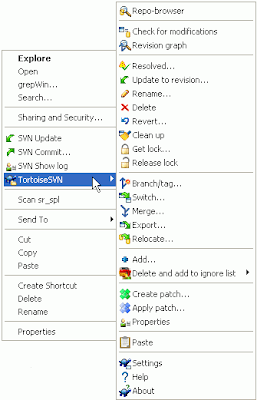 Once we have ensured that our local copy reflects the current state of the files in the repository we are ready to get to work. If you are working in a multi-user setup with the repository hosted on a file server, we would lock the files we wanted to work on. This would prevent anyone else from working on the file we are working on and so avoids file conflicts. In the programing world we are usually working on ASCII (text) files and SVN is smart enough to be able to merge changes if to people work on the same file at the same time. Unfortunately SketchUp model files do not currently have this kind of functionality in SVN so, in a team setting, you would want to 'exclusively lock' a file before you began changes on it.
When you are working solo you could lock a file too - it would help you to stop different file versions from different machines over writing each other. In reality I don't find it very useful - in practice I edit a model and check it back into SVN when I am about to change location (work to home or visa versa), just before I put the memory stick and repository into my pocket.
When you work on a model you will notice the icon in the file browser indicates that the file is changed from the repository version as soon as you save any changes to the file. As I said, I keep making changes to the file and then I check it back into the repository before I leave the office. You commit your changes to the repository by right clicking on the file you have been working on and selecting SVN Commit. At this point a dialog window is displayed allowing you to add a text message describing the changes you have made to the file. You don't have to write anything but you really should just write a one sentence on what you have done since the last time the file was checked out. In the coding world we can 'diff' text style files to find out what changed but we have to really on these hand written messages to describe the changes applied to a model.
Once you've checked your models into SVN you are ready to eject the memory stick and go home (don't just pull it out of the port - disconnect your hardware properly). At home, you sync up your home machine to repository as you did for your work machine. Again you check in your changes when you are done and rinse and repeat.
Hopefully you can see how this keeps two or more machines in step with each other so both are always at the same high-water mark but other cool features does this provide? We said that the repository contains every version of every file that you've every checked in so how can you utilize that? Say you're working on a big, long-term project and you want to see how your model looked 6 months ago before the spec changed. If you right click on a file and select TortoiseSVN > Show Log you will be shown a list of all the versions of your model. You can select any version of the file and open it - it will open 'read only' allowing you to see the old model but you can save a copy off somewhere safe if you need it. If you get to the end of a day (or a bad week) and realize that all the changes you have made have corrupted the model or messed something else up you can revert back to a previous good version. I won't document the specifics of all these features, but be aware that these facilities are there, and refer to the TortoiseSVN documentantion when you need to utilize them.
So there you have it - the basic work flow is to check your instance is up to date at the beginning of the working day and to check in your changes at the end. To me it seems like a minimum inconvenience for maximum peace of mind - if you agree I hope you will start using TortoiseSVN, if you don't at least you now know what you're missing and I thank you for making it through this whole tutorial.

Last time we got TortoiseSVN installed on two machines and we set up our SVN repository on a memory stick (or perhaps a server). Now we'll look at how to use TortoiseSVN as part of our everyday, SketchUp workflow. I promised that integrating version control into our workflow would not impact our model development but there are a few basics that you must learn and use. This description is not meant to replace TortoiseSVN's own documentation "Daily Use" but describes how I use TortoiseSVN in real life.
Let's assume that I did some work at home last night and when I get into my office I want to sync my office PC so it has the changes I made at home on it. I plug in the USB memory stick and I navigate to the file structure on my local PC using windows explorer - the power of the Tortoise user interface is that it is totally integrated into the familiar windows file explorer. How does it achieve this? The version control status of your files and directories is represented by a set of icons and all actions you can perform are executed via context menus (right click). In practice this means that when we navigate to the subversion controlled directory on our work PC we will see an icon showing that something has been 'modified' in the repository and our local copy is out of date. At this point we could just update and resolve these changes in our whole local SketchUp file structure or we can drill down further and resolve a specific file. As we drill down directories and files that have now updates will be easily identifiable from those that have changes via augmented explorer icons. To update either a specific file, directory or whole tree we simply right click on the item we wish to resolve and use the menu options TortoiseSVN > Update. A tortoiseSVN window will then pop up reporting what files have been updated.
Let's assume that I did some work at home last night and when I get into my office I want to sync my office PC so it has the changes I made at home on it. I plug in the USB memory stick and I navigate to the file structure on my local PC using windows explorer - the power of the Tortoise user interface is that it is totally integrated into the familiar windows file explorer. How does it achieve this? The version control status of your files and directories is represented by a set of icons and all actions you can perform are executed via context menus (right click). In practice this means that when we navigate to the subversion controlled directory on our work PC we will see an icon showing that something has been 'modified' in the repository and our local copy is out of date. At this point we could just update and resolve these changes in our whole local SketchUp file structure or we can drill down further and resolve a specific file. As we drill down directories and files that have now updates will be easily identifiable from those that have changes via augmented explorer icons. To update either a specific file, directory or whole tree we simply right click on the item we wish to resolve and use the menu options TortoiseSVN > Update. A tortoiseSVN window will then pop up reporting what files have been updated.
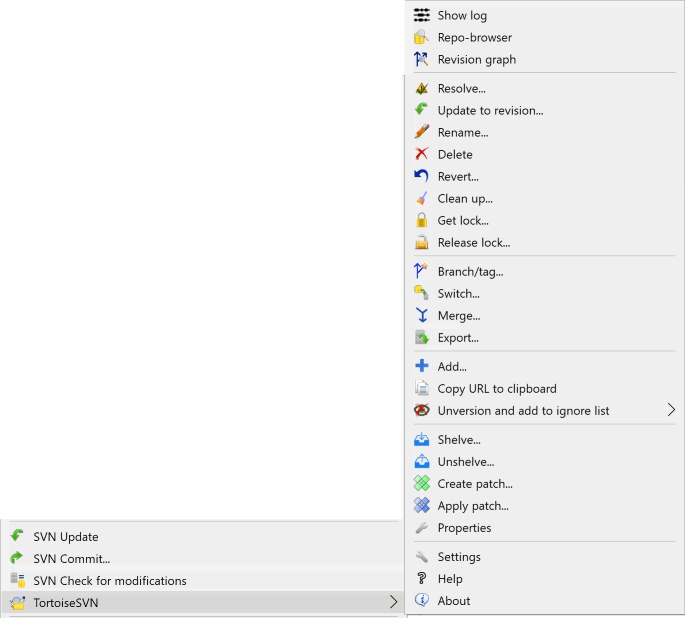 Once we have ensured that our local copy reflects the current state of the files in the repository we are ready to get to work. If you are working in a multi-user setup with the repository hosted on a file server, we would lock the files we wanted to work on. This would prevent anyone else from working on the file we are working on and so avoids file conflicts. In the programing world we are usually working on ASCII (text) files and SVN is smart enough to be able to merge changes if to people work on the same file at the same time. Unfortunately SketchUp model files do not currently have this kind of functionality in SVN so, in a team setting, you would want to 'exclusively lock' a file before you began changes on it.
When you are working solo you could lock a file too - it would help you to stop different file versions from different machines over writing each other. In reality I don't find it very useful - in practice I edit a model and check it back into SVN when I am about to change location (work to home or visa versa), just before I put the memory stick and repository into my pocket.
When you work on a model you will notice the icon in the file browser indicates that the file is changed from the repository version as soon as you save any changes to the file. As I said, I keep making changes to the file and then I check it back into the repository before I leave the office. You commit your changes to the repository by right clicking on the file you have been working on and selecting SVN Commit. At this point a dialog window is displayed allowing you to add a text message describing the changes you have made to the file. You don't have to write anything but you really should just write a one sentence on what you have done since the last time the file was checked out. In the coding world we can 'diff' text style files to find out what changed but we have to really on these hand written messages to describe the changes applied to a model.
Once you've checked your models into SVN you are ready to eject the memory stick and go home (don't just pull it out of the port - disconnect your hardware properly). At home, you sync up your home machine to repository as you did for your work machine. Again you check in your changes when you are done and rinse and repeat.
Hopefully you can see how this keeps two or more machines in step with each other so both are always at the same high-water mark but other cool features does this provide? We said that the repository contains every version of every file that you've every checked in so how can you utilize that? Say you're working on a big, long-term project and you want to see how your model looked 6 months ago before the spec changed. If you right click on a file and select TortoiseSVN > Show Log you will be shown a list of all the versions of your model. You can select any version of the file and open it - it will open 'read only' allowing you to see the old model but you can save a copy off somewhere safe if you need it. If you get to the end of a day (or a bad week) and realize that all the changes you have made have corrupted the model or messed something else up you can revert back to a previous good version. I won't document the specifics of all these features, but be aware that these facilities are there, and refer to the TortoiseSVN documentantion when you need to utilize them.
So there you have it - the basic work flow is to check your instance is up to date at the beginning of the working day and to check in your changes at the end. To me it seems like a minimum inconvenience for maximum peace of mind - if you agree I hope you will start using TortoiseSVN, if you don't at least you now know what you're missing and I thank you for making it through this whole tutorial.
File Organization & Version Control [part 4]: Installing and Setting Up TortoiseSVN
So now we're ready to escape the theoretical and get down to the practical. What version control software do I use? I am an unapologetic windows user and I use TortoiseSVN. If you are a real Architect or other such creative type you are more than likely a Mac user and therefore you need something like ScPlugin - I have no direct experience with ScPlugin so the rest of this article may or may not be useful to you Macheads.
TortoiseSVN provides a graphical front-end, integrated into windows explorer, to the Subversion (SVN) source control system. In it's raw state SVN is command-line utility - I may be a big, old geek but even I don't want to have to open a terminal of dos session and navigate around before working on a file. TortoiseSVN gives you the familiar windows ease of use with the power and stability of SVN as the back-end (the 'vault' we talked about previously). If you're a software developer SVN and TortoiseSVN probably don't need an introduction from me, however, if you're not a techie you may not have heard of these programs before. Don't worry, both these free products have been around for years and are solid, brand leaders (if there is such a thing as 'brand' in the open source community. Many open source development projects are controlled using Subversion and, although ubergeeks love command-line utilities, the rest of us work-a-day programmers use a client such as Tortoise to make using version control a painless propositions. In real life I work for the second largest software development company in the world and we make expensive use of both SVN and Tortoise so you can expect industry-strength products.
There is, however, a big difference between how I use TortoiseSVN in my professional, coding life and how I use it for SketchUp. At work version control is primarily used to allow individuals in teams to work on development projects simultaneously. In SketchUp I am usually working alone on a project but it still provides many indispensable features. It allows me to keep several machines in sync with very little effort and it allows me to explore the history of a model when I need to. So let's talk about specifics; in SVN terminology the 'vault' is called a repository. The repository stores the all versions of all the files in it - it is the source of truth. In a professional environment the repository is stored on a server that is accessible to all team members. Unfortunately my personal server is not available from inside the firewall at work and I do sometimes need to work on a SketchUp model on my work machine. To get around this limitation my SketchUp repository lives on a large, fast memory stick. This is not typical but it works for me - if you have a file server that is accessible from all your SketchUp machines that would be a preferable setup. My repository goes everywhere with me in my jeans change pocket. To protect this resource my thumb-drive automatically backs itself up daily - if I should ever loose or damage my drive I can quickly replace it and have my repository back up and running in a very short time span.
To set up my environment I referenced this article called Subversion on a stick. The instructions can be broken into two parts; initial setup and daily working practices. Setup goes like this:
- Download TortoiseSVN - I keep both the 32 and 64 bit versions of TortoiseSVN also on my memory stick then I can setup any client machines without having to access the internet.
- Install TortoiseSVN - run the executable you just downloaded to install the application - it installs both SVN and Tortoise and it requires a reboot to complete the install as it has to integrate itself into the window's file explorer.
- Create a repository - using windows explorer navigate to your memory stick and create a directory in a suitable place to house your repository. Right click on this folder and select Tortoise SVN > Create Repository Here. When you create a repository it can be stored in either a database (Berkeley DB) or as a file system - I use the native file system as it seems faster and more robust. Give the repository a suitably descriptive name - min, unimaginatively, is called SketchUp.
- Create a working directory on your local PC - in my case this is usually in My Documents/SketchUp - navigate to this directory in file explorer. Right click on the working directory and select SVN Checkout. When asked link this directory to the repository you created in step 3 - it asks for a URL as it expects the repository to be on a web-server but you want to point it to the directory on your thumb drive - the URL, therefore, with we something like this: file:///Z:/Repositories/SketchUp
- Populate the working directory by copying the SketchUp file structure you established as per prior articles into your new SketchUp working directory.
- Put the file structure into SVN - select the top folder in file explorer and right click selecting the menu option TortoiseSVN > add. There are two actions to getting a new file into SVN; first you must add it, then you must check it in (see next step). Make sure you have selected the recursive option and Tortoise should now report on all the files and directories it has added to the repository.
- Check in all the added files - don't ask me why you have to both 'add' and 'check in' new files - you just do. Right click on the SketchUp working directory and select SVN Commit. Again the process should recursively go through all your files and directories.
- On your next machine insert the drive and install TortoiseSVN on this machine.
- Repeat step 4 above to create a link to your repository.
- Populate your local working directory using right click, SVN Update - this should put a copy of all the SketchUp files in the repository on to this machine too.
- Repeat this for each of your working machines.
File Organization & Version Control [part 3]: What is Version Control?
[previously - part 2, part 1] [next]
"So what?" I hear you ask. "I work alone on my models and they aren't code." I understand that version control for your SketchUp models might seem like over kill but consider this; have you ever resumed work on a model and after several hours of effort you realize you have corrupted some component of you model. You really would like to go back to the model as it looked yesterday and copy the good example of that component into the model as it stands this afternoon. Perhaps you have a backup of the file from yesterday somewhere and you can use that, but what if you want to look at the model as it was 6 months ago? Do you even have a copy of the file from then? Or what if you've been working on a model in the office for the last week and you need to finish some work on it this weekend on your home machine? When you return to the office can you be sure which file is the latest and greatest?
In its simplest form you can implement a form of change tracking just through strict working practices. My wife is a writer and she understands the importance of tracking all versions of a document she is working on but the idea of a 'real' version tracking system frightened her. Instead she established a manual version of a change tracking program which works like this:
- Each document she works on resides in its own directory so when she starts work on a new document she creates a new directory to house it and all its future versions.
- When she resumes work on a document her first action is to save that document with an incremental number in its name e.g. the first version of the document is filename_01.doc - when she opens the document next time her first action is to save it as filename_02.doc.
You may already have a privative style of version control in place on your machine and not even realize it. In my house we have both Windows and Mac machines. The Windows PCs are automatically backed up nightly by, and on to, a Windows Home Server (WHS) device. In in similar fashion the Macs back themselves up using Time Machine to an external drive. I won't insult your intelligence by lecturing you on the importance of automatic, daily backups of your data if your work is at all important to you. What these automatic backup devices and applications provide is the ability to see how a file included in the scope of the backup looked yesterday, or last week, or last month. In a pinch these systems might get you out of trouble but they do have a lot of potential problems if you are relying on them for your change tracking. To begin with, the distance you can go back in time is limited both by your storage capacity and by the settings in your utility - at some point the program will delete an old version of your file to make room for more modern backups. It also doesn't help cross machine situations especially if those machines are not in the same location.
So we finally end up knocking at the door of dedicated version control software. Don't be intimidated, it is not as scary as you might think. It doesn't have to cost you anything and, once you've got past the initial setup time and you understand a couple of new working practices you will be able to set it and forget it, smugly confident that you can get to all versions of your model that you have captured and that you will always know where to get the latest version of that model from.
Version control applications consist of a central, shared model or database of all your files and all their versions. Think of this repository as the vault that holds the source of truth about all versions of your model files. This base structure can then be mirrored on any number of working machines or environments. Once you have finished making changes to a model you can then check those changes back into that central vault. All your other machines that reference the same vault are now aware that that file has changed and that their version of it is no out of date with the source of truth. You can easily see the history of a particular model and look at previous versions of that model for every check in that you have performed. You can bring any machine up to the latest versions of all your SketchUp files, or a specific, individual file, in the source controlled file structure so you can keep all your work machines in sync. If a client asks for a version of the file as it looked last September you can retrieve that file without any guess work. In addition, if you work on your models with one or more designers you can tell who made what changes and when they made them.
Next time I'll describe how I set up TortoiseSVN version control software to support my own working practices as well as making some suggestions for what might work for you.
File Organization & Version Control [part 2]: File Locations
 [previously - part 1] [next]
Before we set up some kind of version control system we need to get some basic house keeping and organization out of the way. Do you know where all your SketchUp related files are?
I'm not just talking about your model (*.skp) files; what about all your plugins, components, reference images, example models you've downloaded, materials, exported images, movie clips and movie projects, etc.?
It's complicated enough if you only work on one machine but when you have two or more PC's that you run SketchUp on the problem becomes even more compounded. But before we even go there let's sort out your main machine first.
You could classify the files we are concerned with as being either our project models and their derivatives or reference/utility files. We'll begin with your project model files as these are probably the most precious to you - these are the files you've invested hours, days or weeks of work time in; these are the files that, if you lost them, you'd be upset about. I'm hoping these are already at least in one place/directory. If not you need to use the file search utility on your machine and search for all *.skp files that are on your machine that are not in the component directory - if they're randomly scattered all over your drives let's at least get them put in one place and let's make that place your main SketchUp working directory for your models. In the system preferences of SketchUp , the 'Files' section describes where all your SketchUp files are located or where they will be saved by default. Set the Models directory to your main SketchUp working directory - in my case that's My Documents\sketchup\
Having all your models in one directory works if you only have a few models but for the average SU user it won't be long before this directory gets cluttered so think of a more granular directory tree structure that works for you. There's no one right answer as what works for me might not work for you so take a moment to think about how to logically arrange your working models. I categorize mine by subject; cars, buildings, furniture, etc. and put individual models into these directories. For bigger projects I may have that are made up of more than one model, for example my house models, a campus I'm modeling etc. I create a unique directory for each. These projects usually contain a master model that incorporates the other models but keeping a whole project isolated is useful for me.
Outside my models directory tree I have a peer directory structure for my exports. My exports are any image files I create directly from SU or from a renderer from my models. They also include any animation clips I might create and any movie presentations I might create from those clips etc. I want these files to be accessible and related to my SketchUp models but I do not want them cluttering my modelling directories.
On a par with this tree I also have a reference folder. Here I keep the images I may have personally taken or that I have downloaded from the interweb to help in creating a model - usually I end up with several reference images per model so this directory tree can contain more files and more granular directories than even my model directory. I also put models that I have downloaded from the 3D Warehouse here so that they don't get mixed in with my own models - these may be models I have downloaded to utilize in my own models, or just to see how they are constructed or purely for fun.
Finally I have a peer directory to store all my components which I keep in the same area. By default SU sets this directory up closer to the program executables themselves but I prefer to have them closer to my working models etc. so that I can transport all of my working files from one machine to another easily. The same holds true for textures and styles etc. - in your SU files preferences you can set all these directories to be in subdirectories of you main SU working area directory.
Take some time to get all your files together and organized. Next time we'll look at how you can utilize this work and these organized files across machines and use version control to keep track of your work.
File Organization & Version Control [part 1]: Introduction
One of SketchUp's strengths is its simplicity. The power in that simplicity can lead to some complicated projects and situations which you may find reflected in the chaos of files liberally scattered around your computer's hard drives. If you're like me, you might have several projects on the go at any one time, in various states of competition (or abandonment). To make matters worse you might work on two or more PC's as I do; I have a work laptop, a personal laptop and a home work-station all of which I have been known to run SketchUp on. Admittedly I am a bit of a techie geek but I don't think that's so unusual among SketchUp users.
However disciplined you are there will come a time when you don't know which version of a particular file is the latest and greatest. This can lead to hours of lost work if you're not careful. The last time you edited the SU model of your house were you sitting at your work-station or were you carrying a laptop around? Did you save the file to the local machine, your server or a thumb drive?
If you're not like me and you only use SketchUp on one machine, and you only have a few constructed models, and only have one project underway at a time, I envy you but you can stop reading now. Bye!
... now that those smug, minimalist users have left us let me share my thoughts on file organization, version control and file security for those of us who are a little more scatty:
- File organization refers to how to organize your files of your models, reference images, reference models, exported files, components, plugins, etc. and how you sync those files on your various machines.
- Version control is how you track different versions of your files as they evolve.
- Security is about how you keep those files backed up and safe.
In the following couple of articles I'll describe the issues I feel you should think about and I'll describe how I have addressed them in my own SketchUp work-flow. My solution might not be perfect but it works for me.
It may seem a little dry and boring but if you spend a little time and effort establishing good working practices it can save you days of heartache further on down the road. For all the hours we spend working (or playing) on our models it is worth investing a thought now to establish good file organization and working practices.
[continued]
Subscribe to:
Posts (Atom)